Blank screen: last visible startup stage
Open task Record normal startup and Options visibility before further recovery decisions.
Service handoff pack · MacBook Air M1
Keep the exact boot stage, OS diagnostic route and backup access together for a no-start appointment.
Planning estimate for assembling existing evidence; excludes testing, backup and service.
Enable JavaScript to record observations. The complete preparation guide is available below.
Save observations in each relevant task. Return here to include their records in one export; untouched tasks remain “not started”.
Record normal startup and Options visibility before further recovery decisions.
Capture an Apple silicon diagnostic result and identify exactly which tests ran.
Verify data coverage before service could affect startup storage.
Preserve the starting state: Confirm Apple M1; Intel D-at-start instructions do not apply. Save accessible work and record whether a backup is available. Disconnect peripherals as the Apple Diagnostics source permits.
Source: Mac starts up to a blank screen; Use Apple Diagnostics to test your Mac; How to back up your Mac · Preparation pack synthesis of the linked manufacturer tasks; individual operations retain their task-specific source sections.
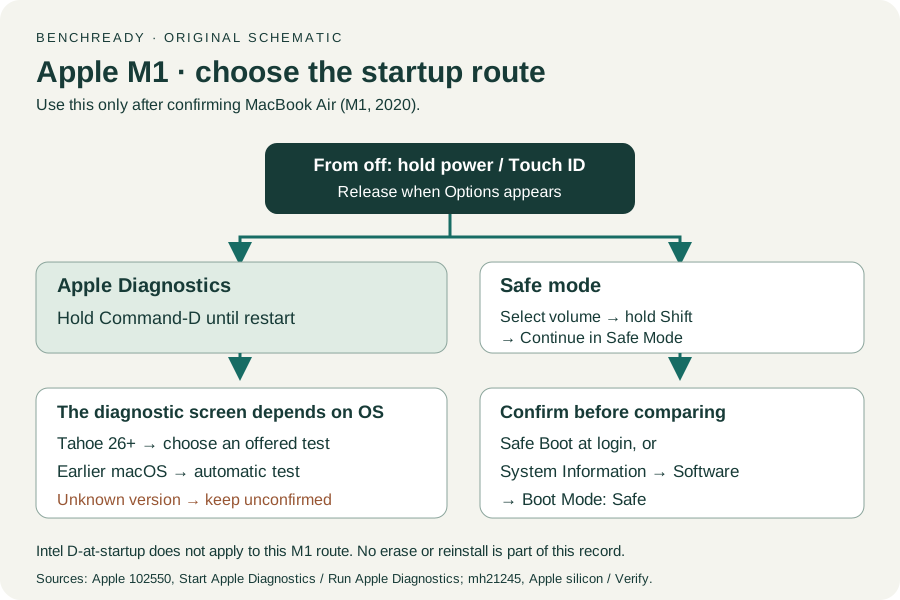
Follow the correct diagnostic route: Use startup Options then Command-D on this Apple silicon Mac. Tahoe 26 or later asks for a specific diagnostic; earlier macOS runs automatically. Retain reference codes and unrun tests without assigning a failed part.
Source: Mac starts up to a blank screen; Use Apple Diagnostics to test your Mac; How to back up your Mac · Preparation pack synthesis of the linked manufacturer tasks; individual operations retain their task-specific source sections.
Make the service handoff: Give the provider the last visible boot stage and any diagnostic result. Discuss inaccessible data before work that may affect storage. Keep account credentials and recovery secrets separately.
Source: Mac starts up to a blank screen; Use Apple Diagnostics to test your Mac; How to back up your Mac · Preparation pack synthesis of the linked manufacturer tasks; individual operations retain their task-specific source sections.
Check the returned Mac: Review the service record and any data changes. Repeat normal startup and the specific failed observation. Keep unresolved intermittent symptoms even if diagnostics find no issue.
Source: Mac starts up to a blank screen; Use Apple Diagnostics to test your Mac; How to back up your Mac · Preparation pack synthesis of the linked manufacturer tasks; individual operations retain their task-specific source sections.
Turn off and on / Recovery / Service · Checked 2026-10-13
Up-to-10-second power action and service routing; this worksheet excludes disk/firmware operations
Reference only. Original paraphrase and observation worksheets; no copied images or manual pages.
Prepare / Apple silicon / Run Apple Diagnostics / Results · Checked 2026-10-13
M1 Options then Command-D; Tahoe 26+ selected tests versus earlier automatic testing; preserve reference code
Reference only. Original paraphrase and observation worksheets; no copied images or manual pages.
Time Machine / iCloud / Other backup methods · Checked 2026-10-13
Backup methods and data recovery purpose; original sample/coverage worksheet
Reference only. Original paraphrase and observation worksheets; no copied images or manual pages.
Find model / MacBook Air M1 2020 · Checked 2026-10-04
Model and chip confirmation
Reference only. Original paraphrase; no copied images or manual pages.
Charging and Expansion / Display Support · Checked 2026-10-13
Two USB-C Thunderbolt/USB4 ports and one native external display up to 6K at 60 Hz
Reference only. Original paraphrase and observation worksheets; no copied images or manual pages.
Original preparation workflow based on the linked documents. No hands-on device repair testing is claimed.