Touch response across surface and accessories
Open task Compare the same touch action with a dry screen, no cable and removable coverings removed.
Device evidence task · iPhone 13
Determine whether the symptom follows this iPhone or one network while preserving saved network settings.
Planning estimate for recording observations; excludes charging, backups, drying and service. Not a measured repair time.
Enable JavaScript to record observations. The complete preparation guide is available below.
Open Settings → Wi-Fi, check Wi-Fi is on and note the selected network checkmark. Keep network names and passwords outside this record.
Source: If you cannot connect to Wi-Fi on iPhone · Check Wi-Fi settings
Open one ordinary webpage. Record association separately from internet access; a checkmark alone does not show the webpage is reachable.
Source: If you cannot connect to Wi-Fi on iPhone · No Internet Connection; Get more help
Try that page on another permitted device on the same network. If both fail, send the comparison to the network owner or ISP.
Source: If you cannot connect to Wi-Fi on iPhone · Verify Wi-Fi router; other devices
If available, try the iPhone on another trusted network. Record the separate result without changing router firmware or resetting networks.
Source: If you cannot connect to Wi-Fi on iPhone · Get more help: different location
If Wi-Fi controls are dimmed, restart normally and recheck. For managed VPN/security software, ask IT before changing it; preserve the comparison evidence.
Source: If you cannot connect to Wi-Fi on iPhone · Dimmed Wi-Fi; VPN/security software
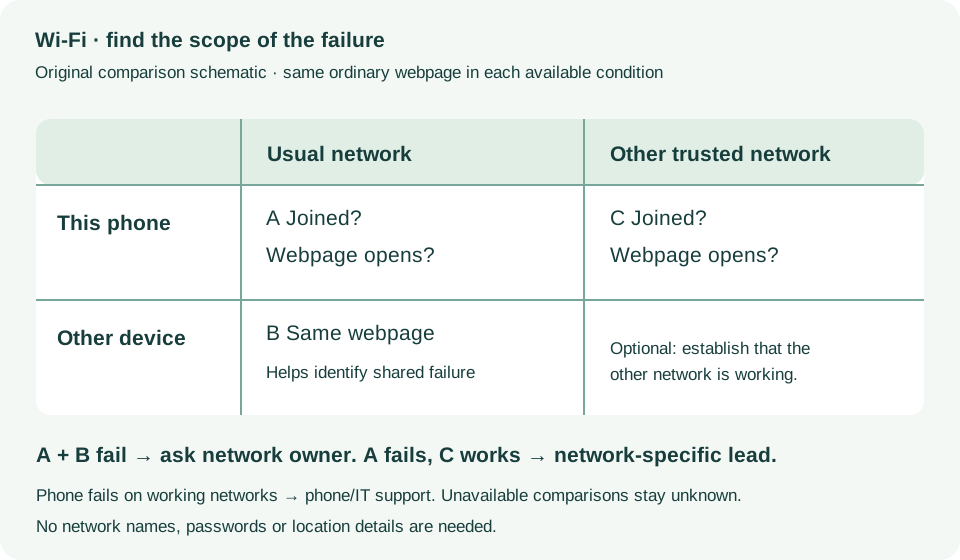
Check Wi-Fi settings; Verify router; Get more help · Checked 2026-10-13
Association versus internet and device/network comparisons
Reference only. Bounded original paraphrase and original schematics; no copied support images or pages.
iPhone X, 11, 12, 13 or later · Checked 2026-10-13
Normal shutdown and restart when touch works
Reference only. Bounded original paraphrase and original schematics; no copied support images or pages.
Handling; Repairing; Battery; Charging · Checked 2026-10-13
Stop use for suspected damage and use trained battery service
Reference only. Bounded original paraphrase and original schematics; no copied support images or pages.
Find the model name / iPhone 13 · Checked 2026-10-04
Model confirmation
Reference only. Original paraphrase; no copied images or manual pages.
External Buttons and Connectors; Power and Battery · Checked 2026-10-13
Lightning, physical controls and wireless charging applicability
Reference only. Bounded original paraphrase and original schematics; no copied support images or pages.
Get ready; Bring in; Get back from service · Checked 2026-10-13
Backup, OS-specific service readiness, credential privacy and returned-device data
Reference only. Bounded original paraphrase and original schematics; no copied support images or pages.
Check settings; Identify connection issue; Problem apps · Checked 2026-10-13
Phone versus network/internet comparison; excludes Pixel 11-only diagnostics
Reference only. Bounded original paraphrase and original schematics; no copied support images or pages.
Original preparation workflow based on the linked documents. No hands-on device repair testing is claimed.