Wired charging: cable, adapter and outlet
Open task Identify which external charging condition changes the response before arranging service.
Device evidence task · iPhone 13
Compare a known Qi setup with alignment, covering and wired-power conditions.
Planning estimate for recording observations; excludes charging, backups, drying and service. Not a measured repair time.
Enable JavaScript to record observations. The complete preparation guide is available below.
Power the Qi charger with its supplied or recommended adapter on a level surface. Disconnect Lightning before judging wireless charging.
Source: How to wirelessly charge your iPhone · Charge wirelessly; USB connection takes precedence
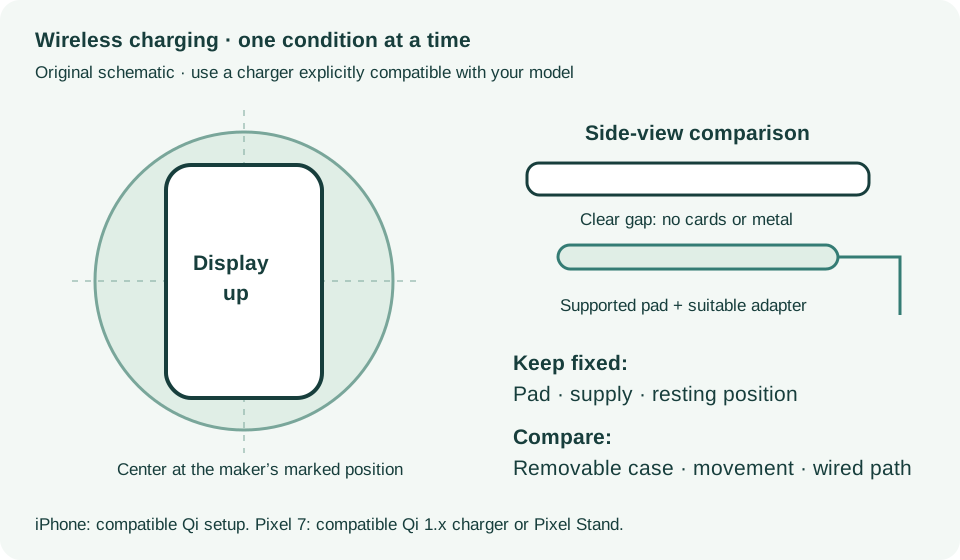
Set the iPhone display-up in the charger center or manufacturer-marked position. Look for the charging indication after a few seconds.
Source: How to wirelessly charge your iPhone · Charge wirelessly steps 3–4
Remove thick, metal or battery cases if safely removable. Keep cards, magnetic mounts and other objects out of the phone-to-pad gap.
Source: How to wirelessly charge your iPhone · Learn more: objects and cases
Observe without moving or using the phone. If a notification shifts its position, record that occurrence instead of repeatedly sliding it around.
Source: How to wirelessly charge your iPhone · Vibration can shift position
If an intact Lightning setup is available and the connector is dry, compare wired charging separately. If warmth pauses charging, let the phone cool before another observation.
Source: If your iPhone will not charge · Different cable/charger; charging behavior
Charge wirelessly; Learn more · Checked 2026-10-13
Qi setup, centering, cases, metal and USB precedence
Reference only. Bounded original paraphrase and original schematics; no copied support images or pages.
If your device will not charge, steps 1–8 · Checked 2026-10-13
External power checks and two 30-minute charging intervals
Reference only. Bounded original paraphrase and original schematics; no copied support images or pages.
External Buttons and Connectors; Power and Battery · Checked 2026-10-13
Lightning, physical controls and wireless charging applicability
Reference only. Bounded original paraphrase and original schematics; no copied support images or pages.
Handling; Repairing; Battery; Charging · Checked 2026-10-13
Stop use for suspected damage and use trained battery service
Reference only. Bounded original paraphrase and original schematics; no copied support images or pages.
Find the model name / iPhone 13 · Checked 2026-10-04
Model confirmation
Reference only. Original paraphrase; no copied images or manual pages.
Get ready; Bring in; Get back from service · Checked 2026-10-13
Backup, OS-specific service readiness, credential privacy and returned-device data
Reference only. Bounded original paraphrase and original schematics; no copied support images or pages.
Wireless charging on Pixel 9a and earlier; Charging tips · Checked 2026-10-13
Pixel 7 Qi 1.x or compatible Pixel Stand and unobstructed charging
Reference only. Bounded original paraphrase and original schematics; no copied support images or pages.
Original preparation workflow based on the linked documents. No hands-on device repair testing is claimed.