ThinkPad USB-C power recognition and charging
Open task Compare the direct Lenovo power path before a dock, adapter or battery decision.
Device evidence task · ThinkPad T14 Gen 2 Intel
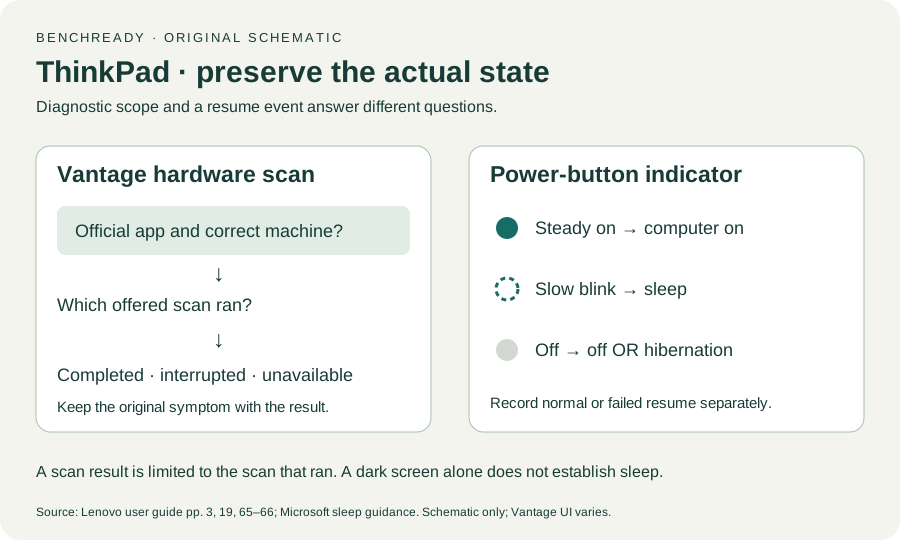
Distinguish a dark display, a sleeping ThinkPad and a repeated resume failure.
Planning estimate for recording observations; excludes charging, backups, drying and service. Not a measured repair time.
Enable JavaScript to record observations. The complete preparation guide is available below.
Record the power-button indicator at the event. The guide identifies steady on as on, slow blinking as sleep, and off as off or hibernation; off alone does not distinguish those last two states.
Source: ThinkPad T14 Gen 2 user guide · Printed p. 3 → power-button indicator
Review Windows power settings and the configured power-button/lid behavior without changing a managed plan. The computer’s actual settings determine the comparison; a closed lid is not proof it slept.
Source: ThinkPad T14 Gen 2 user guide; Shut down, sleep or hibernate your PC · Printed p. 24 → Change power settings; Sleep / lid and power buttons
Save work, safely remove the dock/peripherals, and choose Windows Start → Power → Sleep when available. Record the indicator and whether an ordinary brief power-button press resumes work.
Source: Shut down, sleep or hibernate your PC; ThinkPad T14 Gen 2 user guide · Sleep → Windows 10/11; printed p. 3 → power button
If safe, compare another ordinary event using the documented dock setup or a later direct baseline. Keep the selected power plan and workload constant. Record each actual event instead of repeatedly forcing failure.
Source: ThinkPad T14 Gen 2 user guide · Printed pp. 65–66 → intermittent symptoms and reproducibility; original log design
If a normal resume fails and a forced shutdown is needed, stop repeated testing. Retain indicator, power source, accessory state and backup availability for Lenovo/IT.
Source: ThinkPad T14 Gen 2 user guide · Printed p. 62 → stopped responding; pp. 65–66 → support; conservative stop before reset procedures
Printed pp. 1–5, 9–14, 16–19, 23–25, 27–33, 62, 65–67 · Checked 2026-10-13
Existing local official PDF/text reviewed for Intel layout, optional hardware, controls, Vantage, power and support
Reference only. Original paraphrase and observation worksheets; no copied images or manual pages.
Windows 11 / Windows 10 → Sleep · Checked 2026-10-13
Sleep command, configured lid/power behavior and manufacturer-dependent resume
Reference only. Original paraphrase and observation worksheets; no copied images or manual pages.
Original preparation workflow based on the linked documents. No hands-on device repair testing is claimed.